Thermal Printer Test Page (Receipt & Label)
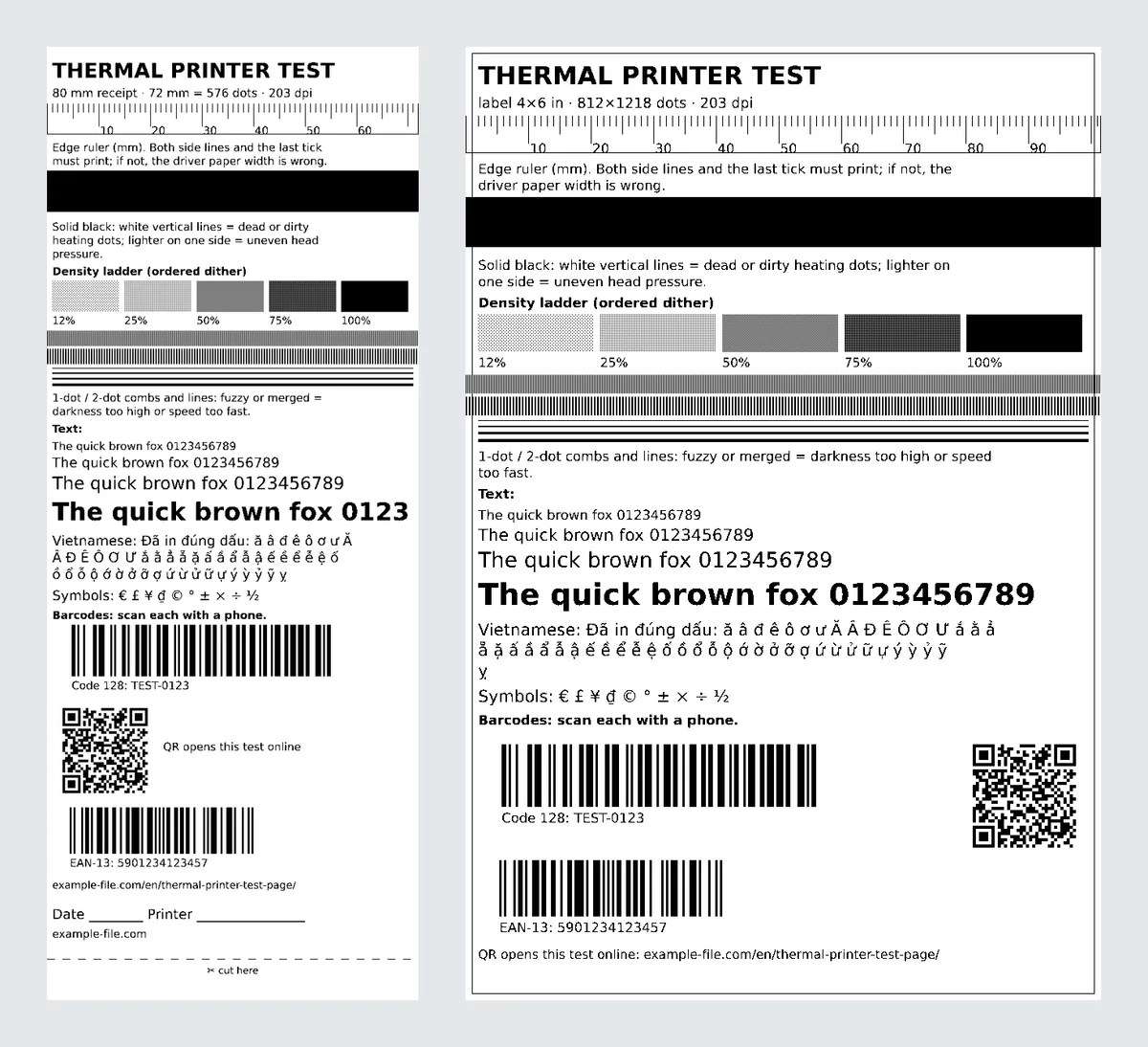
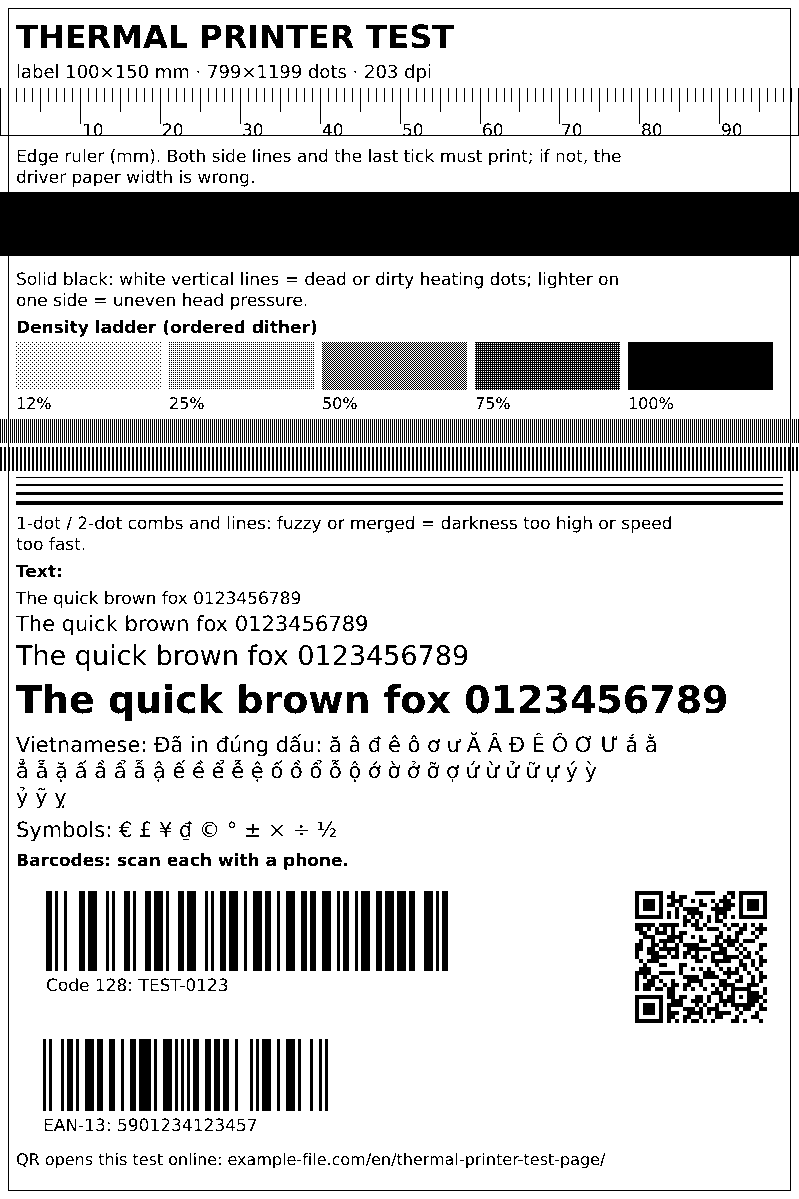
A test page for direct-thermal and thermal-transfer printers: receipt printers (58 mm and 80 mm rolls) and label printers (4x6 shipping labels, 100x150, 50x30 and 40x30 mm). Print it online in one click, or download a PDF or a pixel-exact PNG for phone apps. Every line is drawn on the printer’s own dot grid (203 dpi = 8 dots per mm), so a missing heating element shows up as a white line and a wrong paper-width setting shows up as a cut-off ruler.
What these files actually are
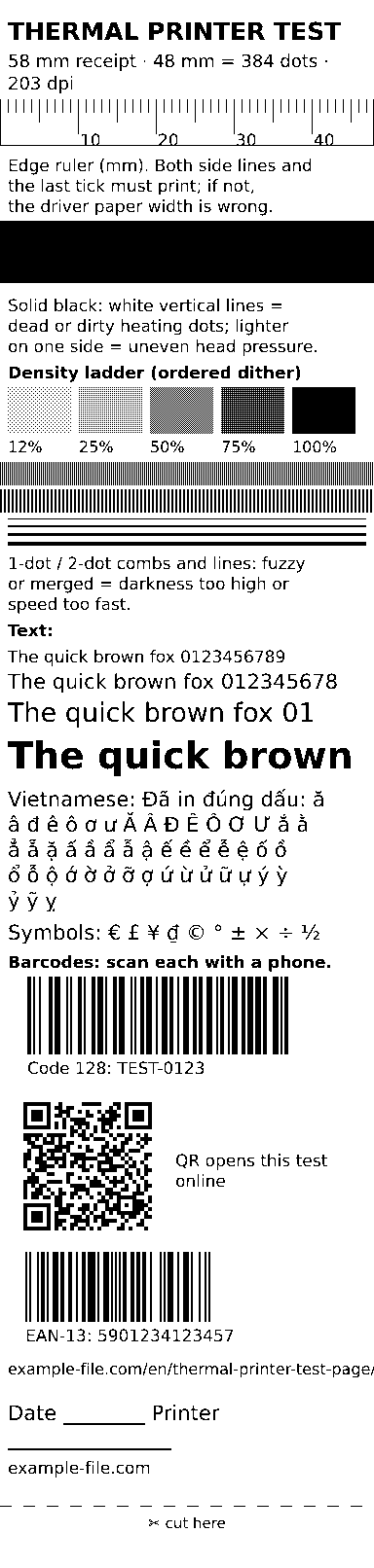
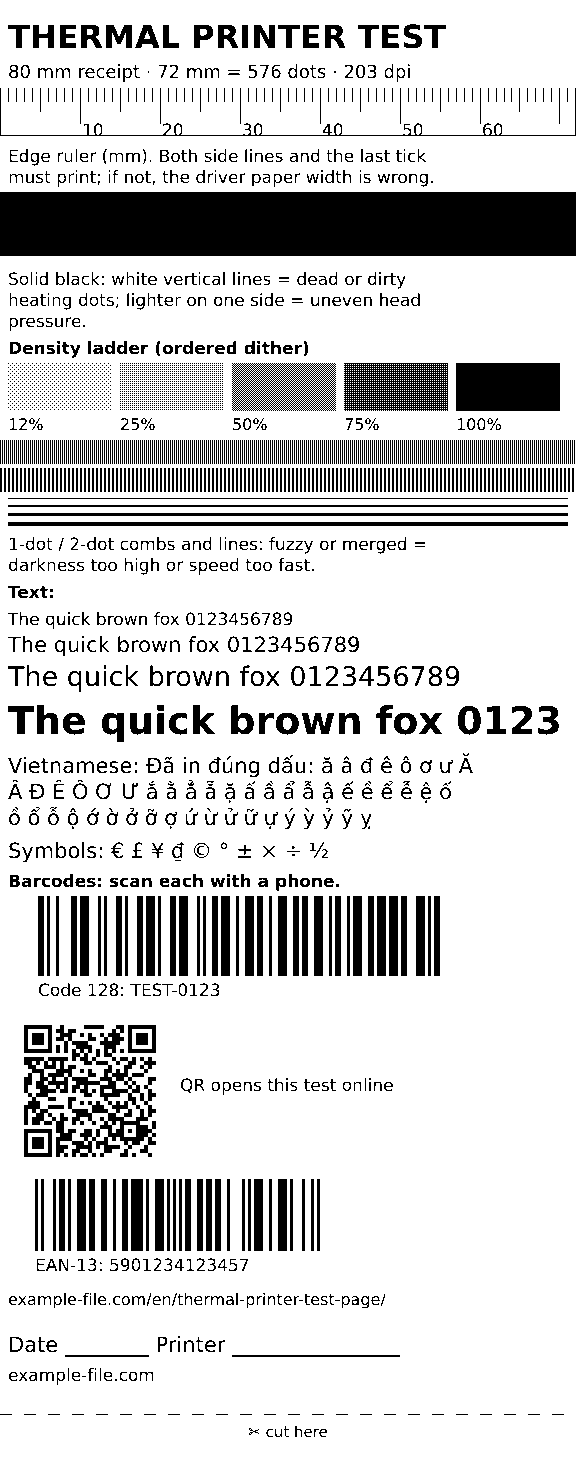
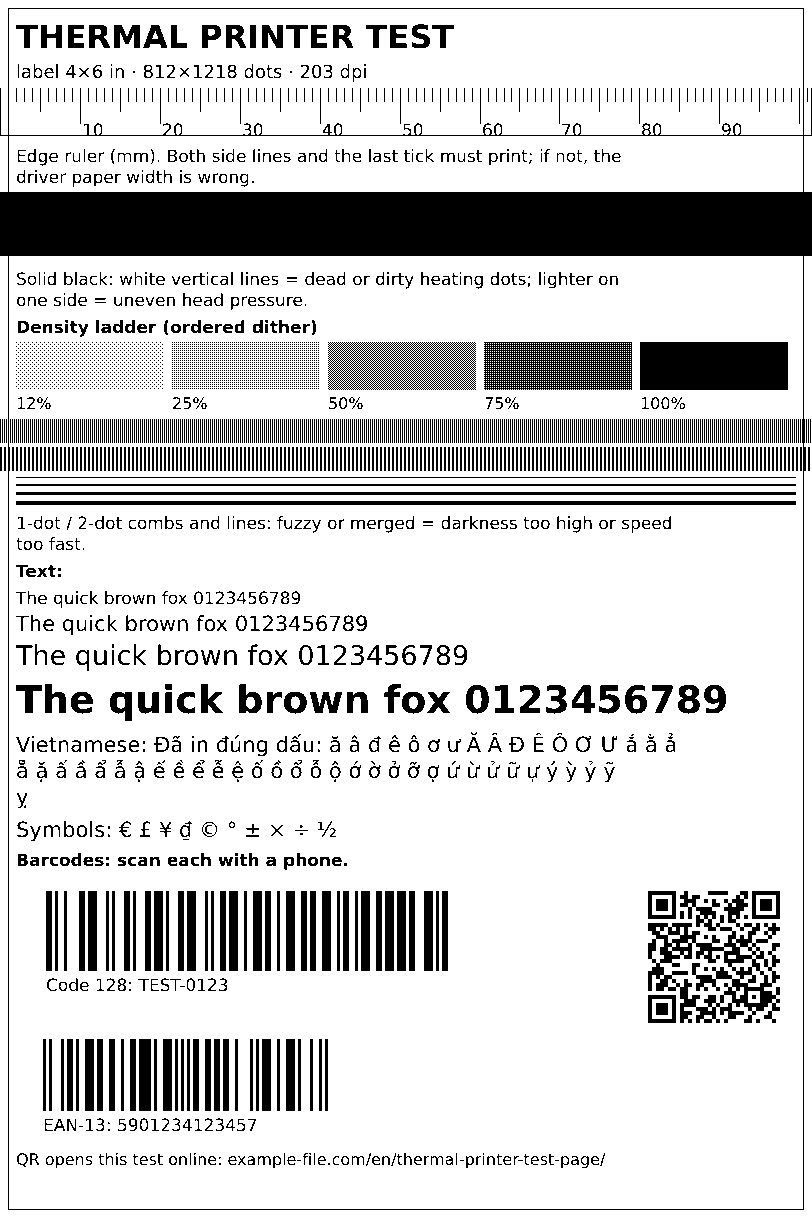
The PNGs are 1-bit images at exactly the head width of each medium (384 dots for 58 mm rolls, 576 dots for 80 mm rolls, 812×1218 for 4x6 labels at 203 dpi), so a printer app can send them without resizing. The Code 128, EAN-13 and QR codes are generated here and were checked with a barcode decoder before publishing. The online tool draws the same artwork in your browser; nothing is uploaded.
Print a test page online
Pick your paper, press Print, and choose your thermal printer in the print dialog. Set margins to None and scale to 100% (Chrome: More settings). Turn off headers and footers.
-
Downloadthermal-receipt-58mm-test.pdfPDF · 30 KB VirusTotal report
-
Downloadthermal-receipt-58mm-test.pngPNG · 11 KB VirusTotal report
-
Downloadthermal-receipt-80mm-test.pdfPDF · 33 KB VirusTotal report
-
Downloadthermal-receipt-80mm-test.pngPNG · 12 KB VirusTotal report
-
Downloadthermal-label-4x6in-test.pdfPDF · 38 KB VirusTotal report
-
Downloadthermal-label-4x6in-test.pngPNG · 12 KB VirusTotal report
-
Downloadthermal-label-100x150mm-test.pdfPDF · 38 KB VirusTotal report
-
Downloadthermal-label-100x150mm-test.pngPNG · 12 KB VirusTotal report
-
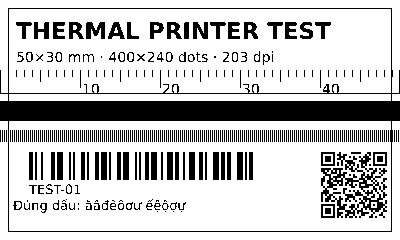
Downloadthermal-label-50x30mm-test.pdfPDF · 5.9 KB VirusTotal report
-
Downloadthermal-label-50x30mm-test.pngPNG · 2 KB VirusTotal report
-
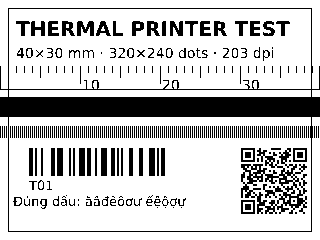
Downloadthermal-label-40x30mm-test.pdfPDF · 5.2 KB VirusTotal report
-
Downloadthermal-label-40x30mm-test.pngPNG · 1.8 KB VirusTotal report
Are these files safe to download?
Every sample file is generated by us — no executable code, no macros. Files are served over HTTPS from our CDN, each with a SHA-256 checksum so you can verify your download and a link to an independent VirusTotal scan report.
Check this site independently:
Reading the result
White vertical lines through the black band
Each line is one heating element that did not fire: dirt or label glue on the head, or a burnt-out element. Clean the head first (printer off and cooled, 99% isopropyl alcohol on a lint-free swab or the cleaning pen, wipe along the head, let it dry). A line that survives cleaning is a damaged element; the head is a replaceable part.
Ruler cut off, or a side line missing
The driver’s paper size or print width is wrong, or the page was scaled. A 58 mm roll prints 48 mm; an 80 mm roll prints 72 mm (some older 80 mm models print 64 mm/512 dots). Match the paper size in the driver, set margins to none and scale to 100%.
Lighter on one side
Uneven pressure between the head and the rubber platen roller: the roll or label liner is not seated flat, the lid is not fully latched, or the roller is worn. Reload the media and close the lid firmly; a worn roller is a cheap spare part.
Whole page pale or grey
Raise the darkness/density setting a step at a time, or slow the print speed. Check the paper: scratch the printed side with a fingernail — thermal paper turns dark where scratched. If nothing shows, the roll is in upside down. Old or cheap paper also prints pale. On ribbon (thermal-transfer) printers, check that the ribbon matches the label material.
Combs merged, text bleeding, barcodes won’t scan
Darkness is too high or speed too fast: the dots spread into each other and barcode bars get fatter. Lower darkness until the 1-dot comb shows separate teeth. Barcodes also fail when the page was scaled to fit — print at 100%.
Labels drift or print across the gap
Run the printer’s label calibration (often a long press of the FEED button, or the calibrate option in its app) after every change of label size, and set the same size in the driver. The 1 mm frame on the label test makes any offset obvious.
Most receipt printers can also print their own self-test page without a computer, usually by holding FEED while switching the printer on; check your manual for the exact combination. That page shows the firmware settings, this one shows what your computer or phone actually sends.
How to print this test sheet
- Choose the test that matches your paper: 58 mm or 80 mm for receipt printers, 4x6 or 100x150 for shipping-label printers, 50x30 or 40x30 for small product labels.
- From a computer: use Print above, or open the PDF and print at Actual size / 100% with the paper size set to the same roll or label.
- From a phone app (Bluetooth or Wi‑Fi printers): send the PNG — it is already the exact dot width of the head, so the app should not need to resize it.
- Check the black band for white lines, the ruler for cut-off edges, the combs for merged dots, then scan all three barcodes with a phone camera.
- Write the date and printer on the slip and keep it: comparing it with a later print shows whether the head is wearing out.
Common use cases
New receipt printer setup
Confirms the driver paper width, cutter position and Vietnamese or other accented text before the first real order is printed.
Shipping label printers
Checks 4x6 alignment, gap calibration and barcode readability for carriers before you print a batch of postage labels.
Faded or streaky receipts
Separates a dirty or damaged print head (white lines) from a settings problem (pale or bleeding) and from paper loaded the wrong way round.
Buying a used thermal printer
One page shows dead elements across the full head width, which is the part that costs the most to replace.
Frequently asked questions
- Why does my 58 mm printer only print 48 mm wide?
- That is normal: 58 mm thermal printers have a 48 mm head (384 dots at 203 dpi), leaving a blank margin on each side of the roll. Likewise an 80 mm printer usually prints 72 mm. Lay out receipts for the print width, not the paper width.
- What does a white line down every receipt mean?
- One heating element on the head is not firing, usually because of debris or adhesive on the head. Cleaning with isopropyl alcohol fixes most cases; if the line stays in the same place after cleaning, that element is damaged and the head needs replacing.
- Why do Vietnamese accents print wrong from my sales app but fine from this page?
- This page is sent to the printer as an image, so any language prints. Many POS apps send plain text that the printer draws with its built-in fonts, and if the firmware has no Vietnamese code page the accents come out wrong. Use the app’s print-as-image (bitmap) option if it has one, or a printer model that supports Vietnamese text.
- Should I print at 203 dpi or 300 dpi?
- Use your printer’s real resolution. Most receipt and 4x6 label printers are 203 dpi; some label printers are 300 dpi. With the wrong setting the page still prints, but fine lines and dither patterns land between dots and look uneven.
- Does the test page use up a lot of paper?
- About 20 cm of a 58 mm roll, or one label. There is no ink or toner involved in direct thermal printing, only paper.