Sublimation Test Image
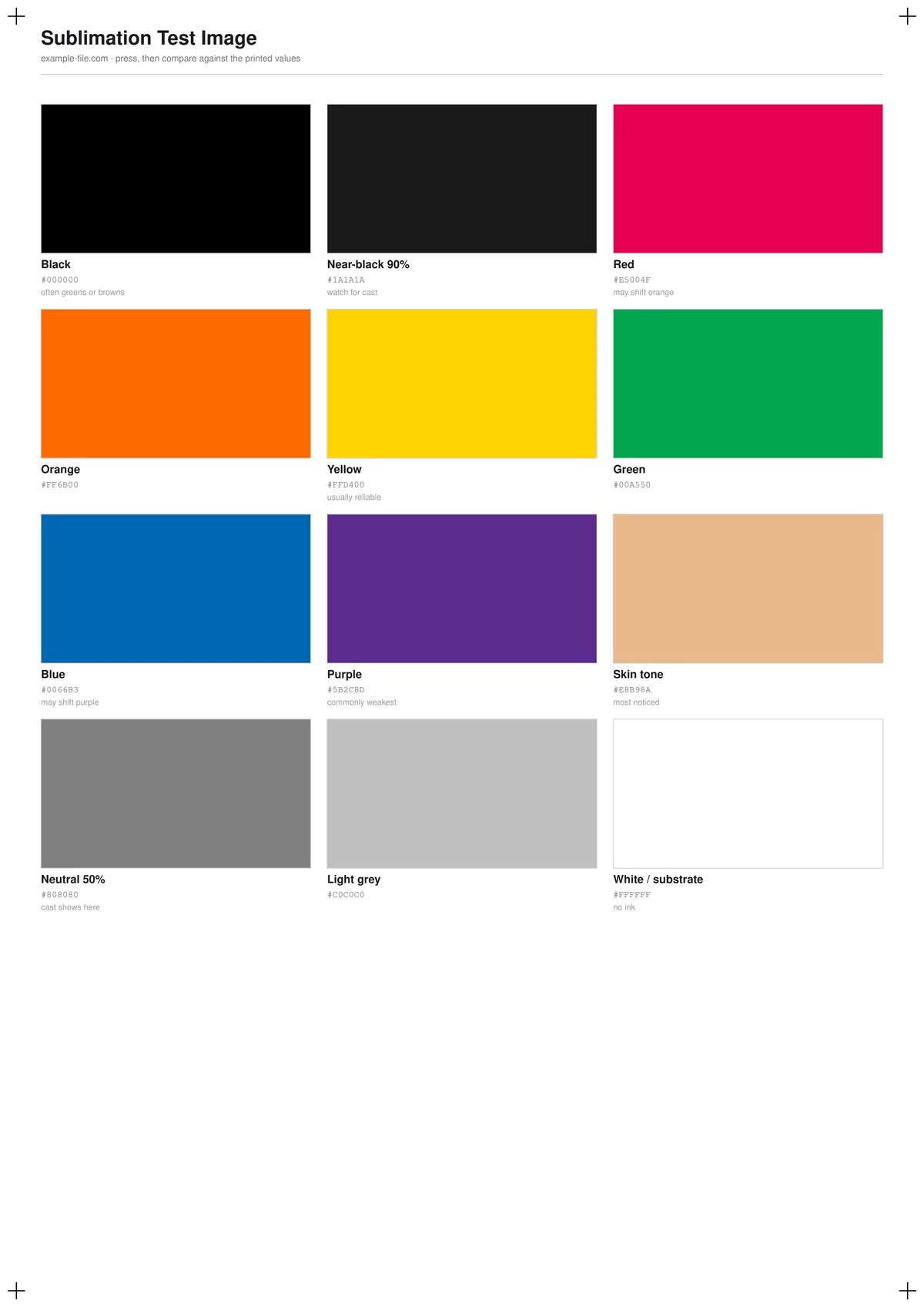
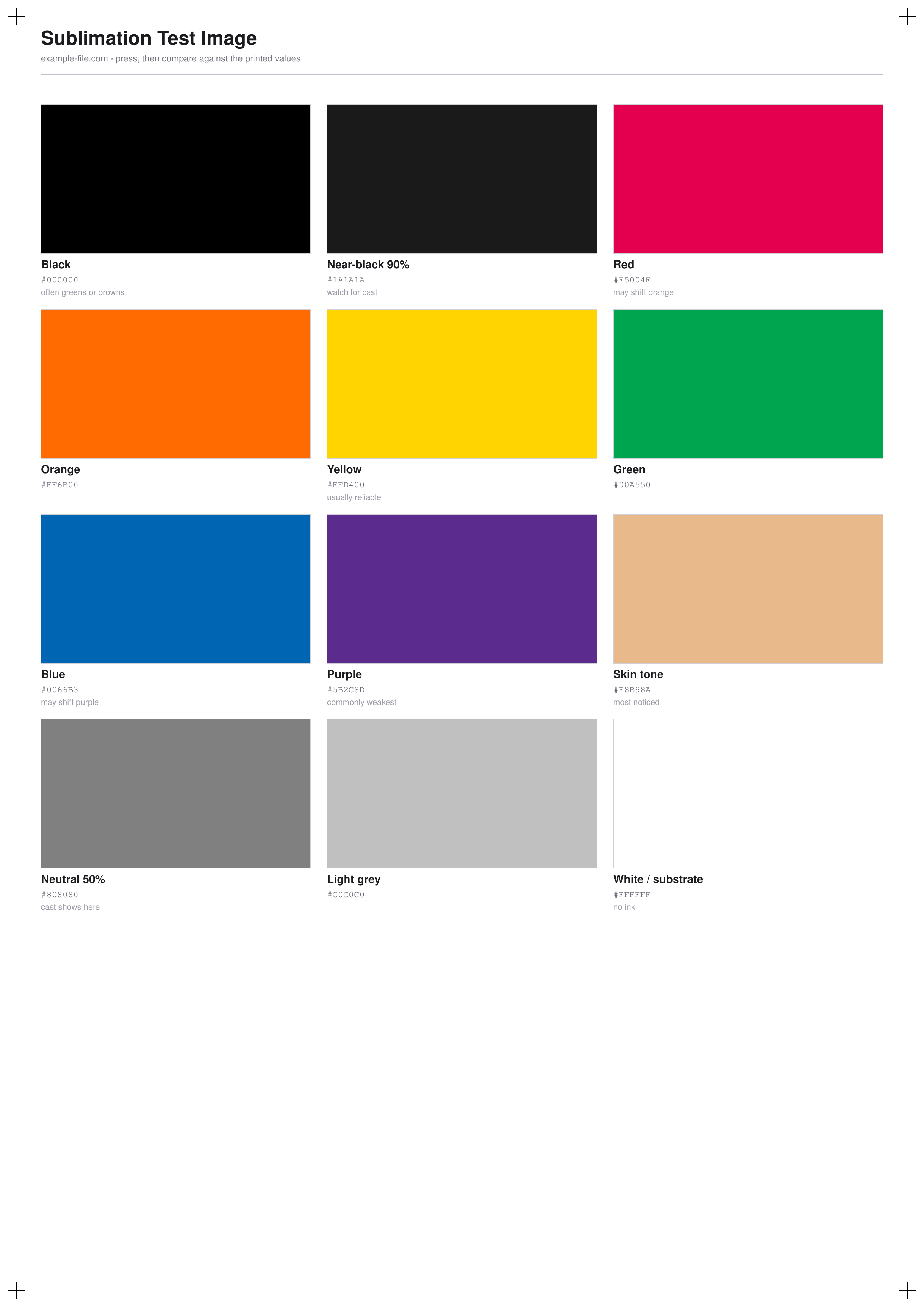
Twelve patches chosen for the colours that actually cause trouble in dye-sublimation — black that comes out green or brown, purple that arrives weak, skin tones that everyone notices, and a neutral 50% grey where any cast shows immediately. Each patch is labelled with its exact hex and RGB values, and the sheet includes a log for temperature, time, pressure and substrate, because in sublimation those are half of the result.
What these files actually are
This sheet is a reference, not a profile. Sublimation colour is decided at the heat press: the same file on the same printer produces different colour at 190°C for 45s than at 200°C for 60s, and different again on a different substrate. So there is deliberately no claim here that the patches will match anything — they carry their input values so you can record what came out and build your own correction. Anyone promising a downloadable file that makes dye-sub colour-accurate is selling you something that cannot exist.
-
Downloadsublimation-test-a4.pdfPDF · 2.9 KB VirusTotal report
-
Downloadsublimation-test.pngPNG · 191 KB VirusTotal report
Are these files safe to download?
Every sample file is generated by us — no executable code, no macros. Files are served over HTTPS from our CDN, each with a SHA-256 checksum so you can verify your download and a link to an independent VirusTotal scan report.
Check this site independently:
How to print this test sheet
- Print onto sublimation paper with your normal sublimation ink and settings, at 100% scale, with colour management set the way you'd run a real job.
- Press onto the substrate you actually use, and write the temperature, time and pressure onto the log at the bottom of the sheet before you forget them. An unlabelled test press is worthless a week later.
- Compare the pressed patches against the printed RGB values, not against your monitor. The unpressed print will look dull and wrong - that's normal, sublimation ink only reaches its colour under heat.
- Look at the black patch first. If it has gone green or brown, that's the classic sign of under-pressing (too cool or too short) - the black dye hasn't fully developed.
- Check the neutral 50% grey for a cast. Grey is where a colour shift is most visible and hardest to argue with.
- Repeat with one variable changed at a time - 5°C, or 10 seconds - and keep the sheets. Three or four presses will tell you more about your setup than any generic profile.
Common use cases
Dialling in press time and temperature
Press the same sheet at several settings and compare. The black and purple patches will show under-pressing long before the bright colours do.
Qualifying a new substrate
Different blanks take dye differently. Running the same reference across substrates tells you which ones need their own settings.
Diagnosing a colour complaint
When a customer says the red is wrong, a pressed reference sheet with known input values turns an argument into a measurement.
Building your own correction curve
Recording input values against pressed results across the twelve patches is the raw material for adjusting your workflow.
Frequently asked questions
- Why does the print look faded and wrong before pressing?
- That's how sublimation works and it's expected. The ink sits on the transfer paper in a dull, muted state and only turns into its real colour when heat converts it to gas and it bonds with the polyester. Judging colour from the unpressed print tells you nothing.
- My black came out green. What's wrong?
- Almost always under-pressing - not enough heat, not enough time, or both. Sublimation black is a mix, and its components develop at slightly different rates, so an incomplete press leaves the mix unbalanced. Try adding 10-15 seconds, then 5°C, changing one variable at a time and keeping the sheets.
- Will these patches match if my setup is correct?
- No, and any file claiming they would is misleading you. Dye-sub colour depends on your ink, paper, printer, press, substrate, time, temperature and pressure. The patches are a fixed, known input so that you can characterise your own output - that's a genuinely useful thing, and it's a different thing from matching.
- Should I use the PDF or the PNG?
- The PDF for printing - it's a true A4 page and will come out at the right size at 100% scale. The PNG if your RIP or sublimation software only takes images. The patch values are identical in both.
More printer test images
- DTF Printer Test Image — Free Transparent PNG for White Underbase
- Color Printer Test Page — Free RGB Color Bar & Gradient (PDF/PNG)
- CMYK Test Image — Free 4-Channel CMYK JPEG & TIFF Download
- Photo Printer Test Image — Free Color-Reference Scene (JPG/TIFF)
- Printer Test Image — Free Printable Test Page (PDF/PNG)