CMYK Test Image
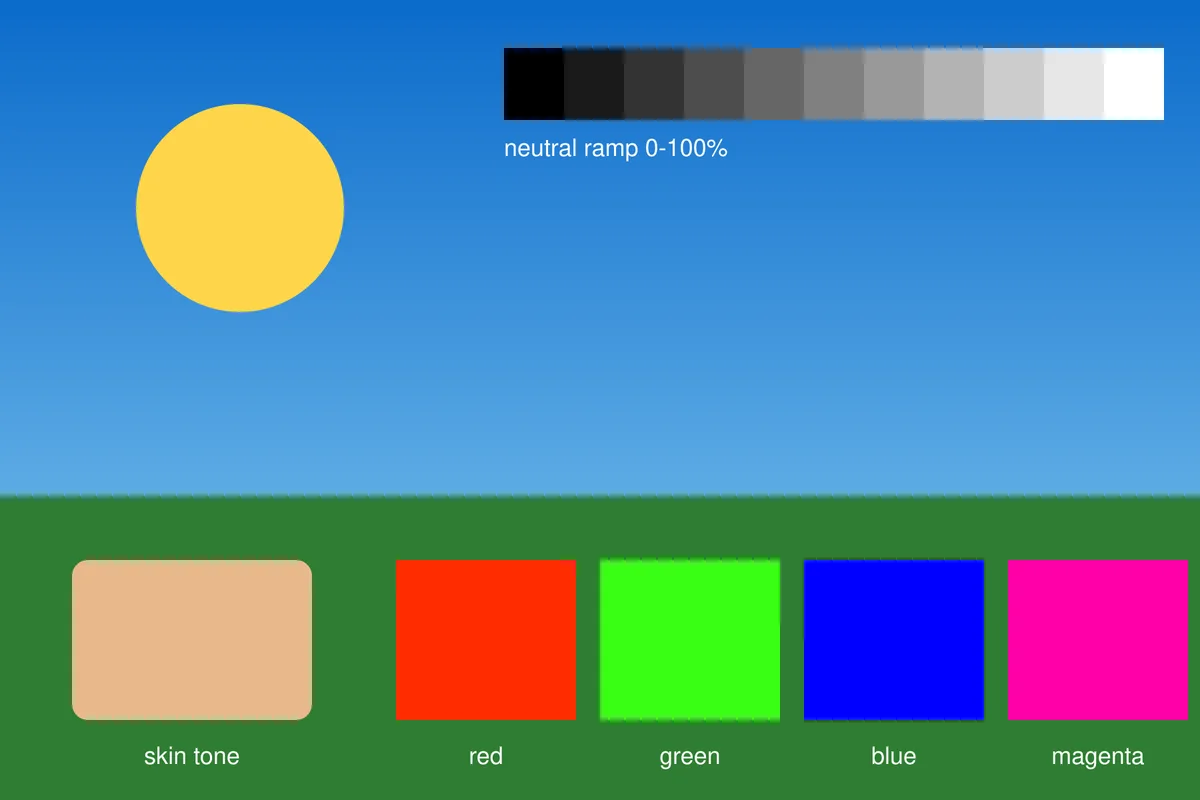
A real CMYK-mode image file, for when you need to test the container rather than the colours. A 4-channel CMYK JPEG is the classic file that quietly breaks things: browsers refuse it or render it with inverted colours, thumbnailers produce garbage, and upload forms accept it and then mangle it. This is that file, made deliberately - plus the same scene as a CMYK TIFF and as an RGB reference, so you can tell a broken pipeline from a broken file.
What these files actually are
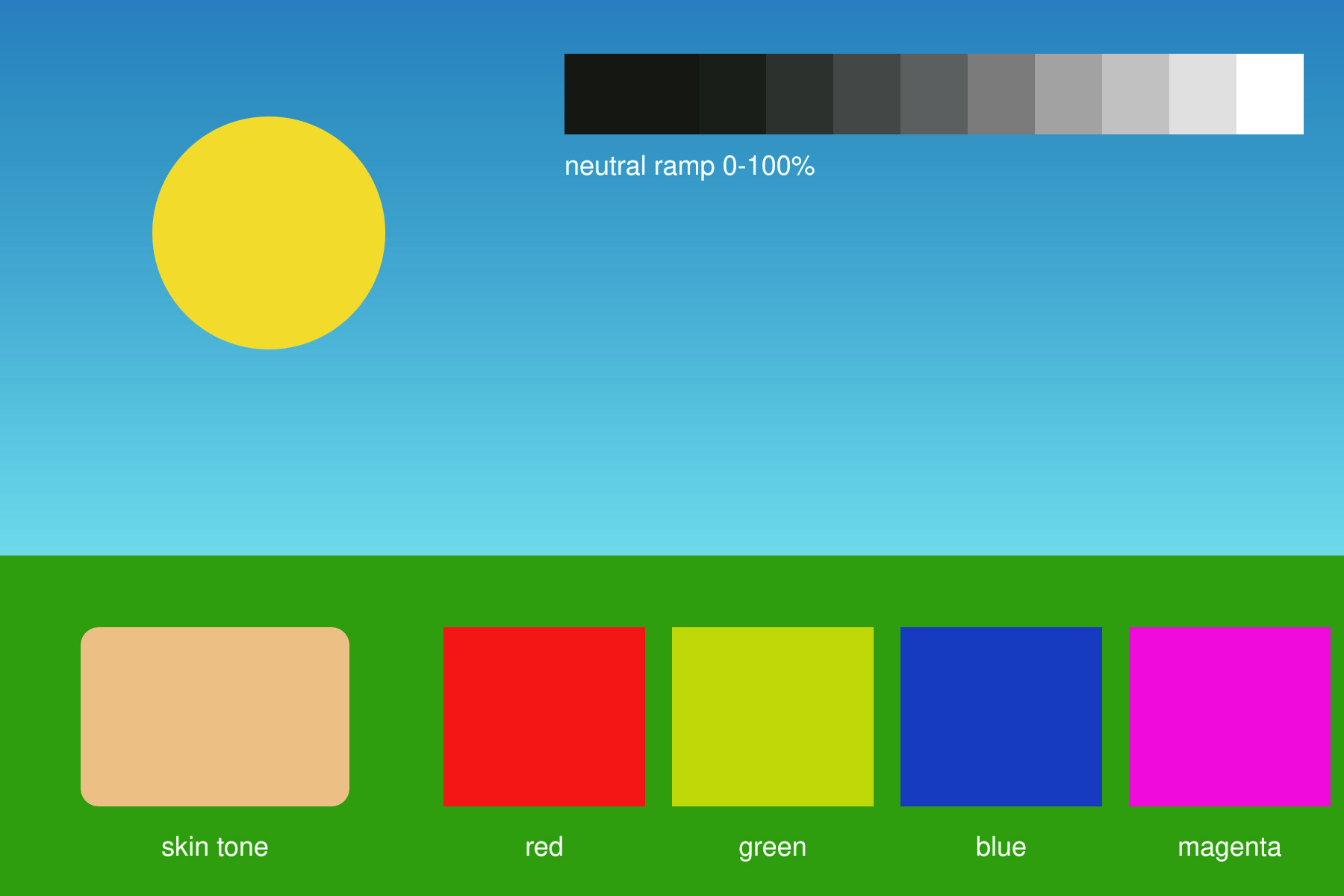
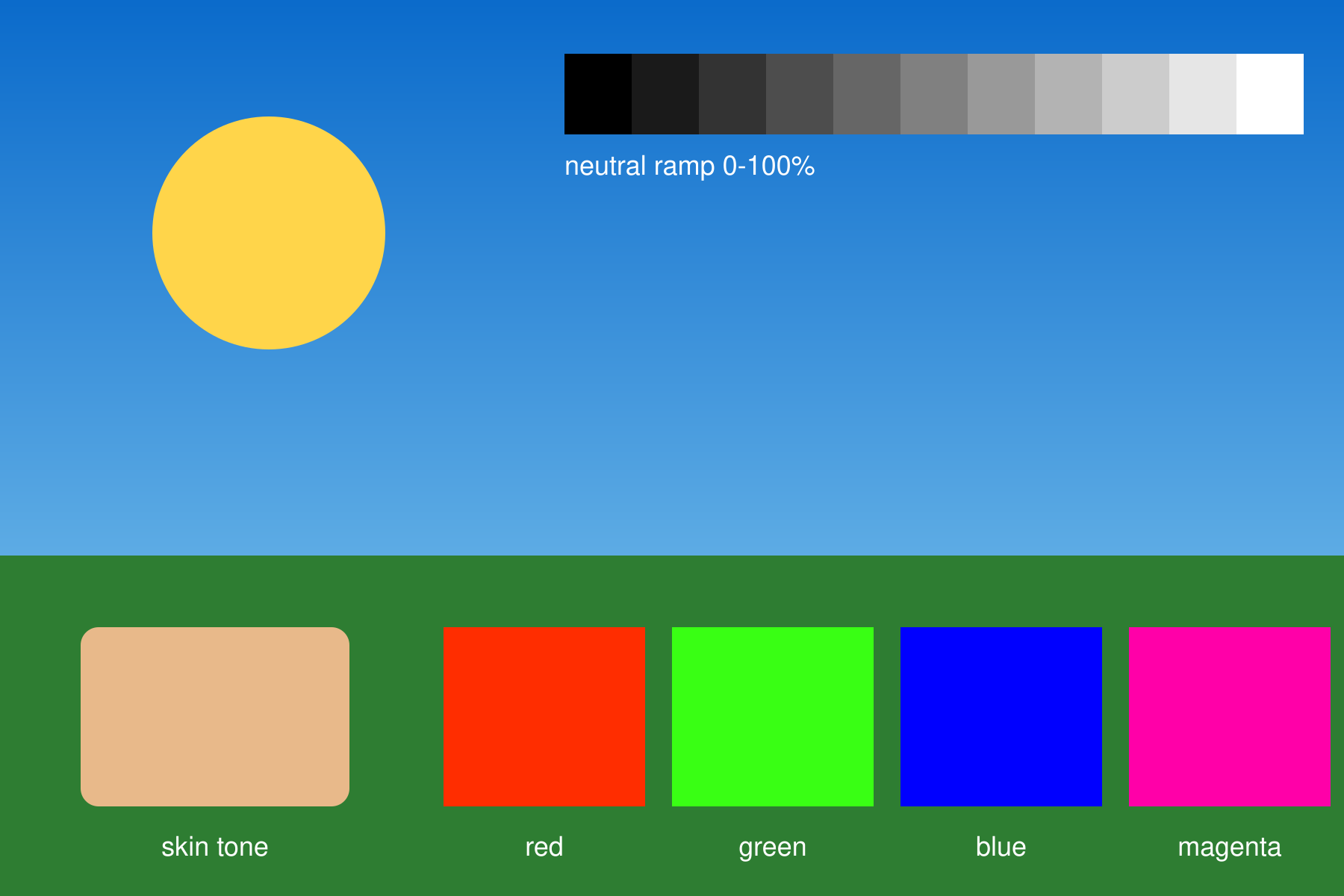
These are genuinely 4-channel CMYK files, not RGB images with CMYK in the filename - verified with Sharp after generation, and you can confirm it yourself with `identify -verbose` or by checking the channel count in any image tool. The scene is built to be awkward on purpose: saturated red, green, blue and magenta blocks that sit outside CMYK's gamut, memory colours (sky, foliage, skin tone) where a shift is obvious, and an 11-step neutral ramp that exposes colour casts. The conversion uses a generic, uncalibrated profile - for colour-critical work, convert with your own output profile rather than trusting this file's numbers.
-
Downloadcmyk-test-image.jpgJPG · 1.1 MB VirusTotal report
-
Downloadcmyk-test-image.tiffTIFF · 84 KB VirusTotal report
-
Downloadcmyk-test-image-rgb-reference.pngPNG · 77 KB VirusTotal report
Are these files safe to download?
Every sample file is generated by us — no executable code, no macros. Files are served over HTTPS from our CDN, each with a SHA-256 checksum so you can verify your download and a link to an independent VirusTotal scan report.
Check this site independently:
How to print this test sheet
- Try opening the CMYK JPEG in a browser first. Most will either refuse it or show it with strange, often inverted colours - that is the expected result, and it's exactly why this file is useful as a test case.
- Compare the CMYK JPEG against the RGB reference PNG in a colour-managed application such as Photoshop, Affinity or GIMP. Both should look broadly similar there; if only one of them looks wrong, the problem is that application's colour handling.
- Feed the CMYK JPEG through whatever pipeline you're testing - an upload form, a thumbnail service, an image CDN, a print submission portal. Anything that silently converts, strips channels, or produces inverted colours has a bug worth knowing about before real customer files hit it.
- Check the neutral ramp across the top. It should stay grey; if it drifts warm or cool after a round trip, something applied a conversion it shouldn't have.
- Watch the saturated blocks - red, green, blue and magenta. These sit outside what CMYK can reproduce, so they will look duller in the CMYK versions. That's correct behaviour, not a fault in the file.
- Use the TIFF where a workflow refuses JPEG. It carries the same 4-channel CMYK data in a container that prepress tools handle more predictably.
Common use cases
Testing an upload pipeline
Customers submitting print artwork send CMYK JPEGs constantly. This is a known-good one to check that your form, storage and preview generation handle it instead of producing inverted thumbnails.
Reproducing the 'inverted colours' bug
The classic symptom of naive CMYK JPEG handling is a photo that comes out looking like a negative. This file reproduces it on demand, which makes the bug fixable.
Checking software CMYK support
Before committing to a tool for print work, confirm it actually opens, previews and exports 4-channel CMYK rather than silently converting to RGB.
Teaching the RGB/CMYK distinction
Having the same scene in both modes, with visibly clipped saturated blocks, makes the gamut difference concrete instead of theoretical.
Frequently asked questions
- Why does the CMYK JPEG look wrong - or refuse to open - in my browser?
- That's the expected result and the reason this file exists. Browsers are built for RGB images; support for 4-channel CMYK JPEG is patchy to nonexistent, and the common failure mode is inverted-looking colours caused by Adobe's APP14 marker being ignored. If you need the image to display on the web, convert it to RGB first - which is precisely the lesson this file is designed to teach.
- How is this different from the CMYK printer test chart?
- The chart is a measuring instrument - ink patches at known percentages for calibrating a press. This is an image file, and the thing under test is the file format and whatever software touches it, not your printer. If you want to check ink accuracy, use the chart; if you want to check that something handles CMYK image data correctly, use this.
- Are these files colour-managed to a specific ICC profile?
- They use a generic, uncalibrated CMYK conversion. That's appropriate for testing whether software handles CMYK at all, but not for colour-critical prepress - there, convert your own images with your printer's actual output profile.
- How do I verify the files really are 4-channel CMYK?
- Run `identify -verbose cmyk-test-image.jpg` (ImageMagick) and look for Colorspace: CMYK and four channels, or open the file in Photoshop and check Image > Mode. Any tool that reports three channels or sRGB is telling you it already converted the file on the way in.
- Why do the red, green and blue blocks look dull?
- Because they can't be printed. Those blocks are deliberately outside CMYK's reachable colours, so converting clips them to the nearest printable equivalent. Seeing that clipping is part of the test - if they looked identical to the RGB reference, the conversion wouldn't have happened.
More printer test images
- CMYK Printer Test Chart — Free Ink Patch Chart (PDF/TIFF)
- RGB vs CMYK Test Image — See Real Color Conversion (PNG/TIFF)
- Rich Black CMYK Test — Free Black Formula Chart (PDF/PNG)
- Ink Test Page — Free Printable Ink Coverage Test (PDF/PNG)
- Photo Printer Test Image — Free Color-Reference Scene (JPG/TIFF)